paintbrush-fineHole Layers

Overview

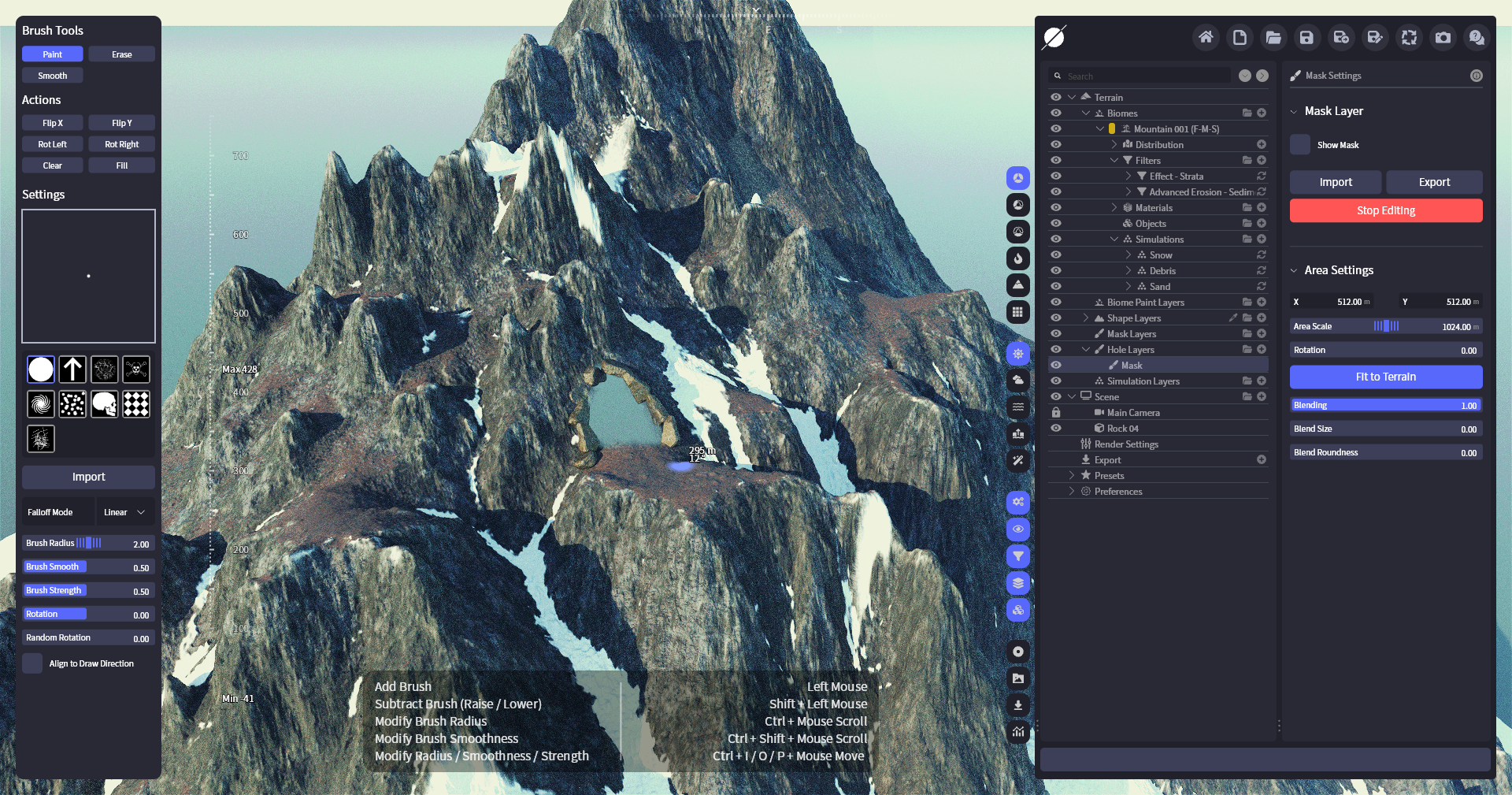
Hole Layers enable you to add holes for caves or other structures that should pierce through the landscape by either painting directly in World Creator or importing a bitmap from an external source.

Results

Putting a cave entry in a mountain
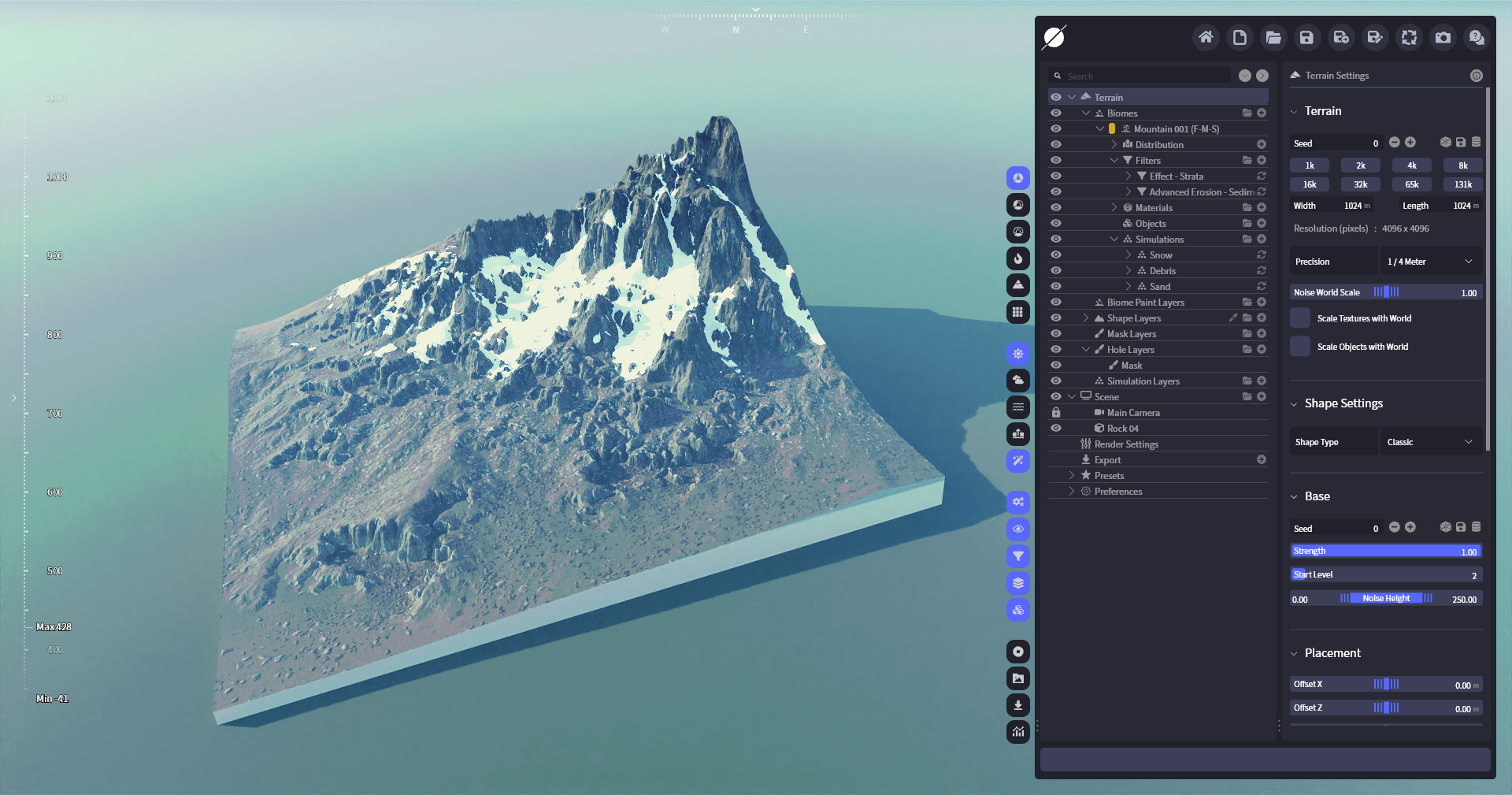
Full terrain with the cave

Layer Parameters

Mask Layer Settings

  • Show Mask Shows the mask on the terrain.

  • Import/Export Allows you to import or export the mask.

  • Edit Allows you to edit the mask using brushes.

Area Settings

The Area Settings allow you to freely position Hole Layers on your terrain and offer simple controls to blend them into your terrain.

  • X/Y The position of the area on the terrain.

  • Area Scale The size of the area.

  • Rotation The rotation of the area

  • Fit to Terrain Matches the area to the terrains full size.

  • Blending Controls the opacity of the whole shape layer.

  • Blend Size Adds a fade in to the area.

  • Blend Roundness Rounds the corners of the face.

Editing Parameters

These parameters are only available when the hole layer is in Edit mode.

Brush Tools

Simple paint tools to modify the hole. Choose your preferred tool by clicking on it, and then draw with your mouse (press the left mouse button on the terrain). The following functions are available:

  • Paint Adds to the mask.

  • Erase Removes from the mask.

  • Smooth Averages the mask under the brush.

Actions

The operations are utilized to rapidly implement precise modifications. Please refer to the list below to understand the function of each operation.

  • Flip X Flips the mask along the X axis.

  • Flip Y Flips the mask along the Y axis.

  • Rot Left Rotates the mask by 90°.

  • Rot Right Rotates the terrain by 90°.

  • Clear Sets the whole mask to 0.

  • Fill Sets the whole mask to 1.

Brush Settings

Properties
Description

Brush

Allows you to specify several preinstalled brushes as well as import your own custom brushes.

Falloff Mode

Offers different brush falloff modes.

Brush Radius

The radius of the brush.

Brush Smooth

The size of the brush smoothing.

Brush Strength

Controls the strength of the current selected brush.

Rotation

Rotates the brush pattern.

Random Rotation

Adds random rotation to the brush pattern.

Align to Draw Direction

Orients the brush pattern to the drawing direction.

Last updated

Was this helpful?