> For the complete documentation index, see [llms.txt](https://docs.world-creator.com/llms.txt). Markdown versions of documentation pages are available by appending `.md` to page URLs; this page is available as [Markdown](https://docs.world-creator.com/zh/cao-zuo-zhi-nan/introduction/main-panel.md).

# 主面板

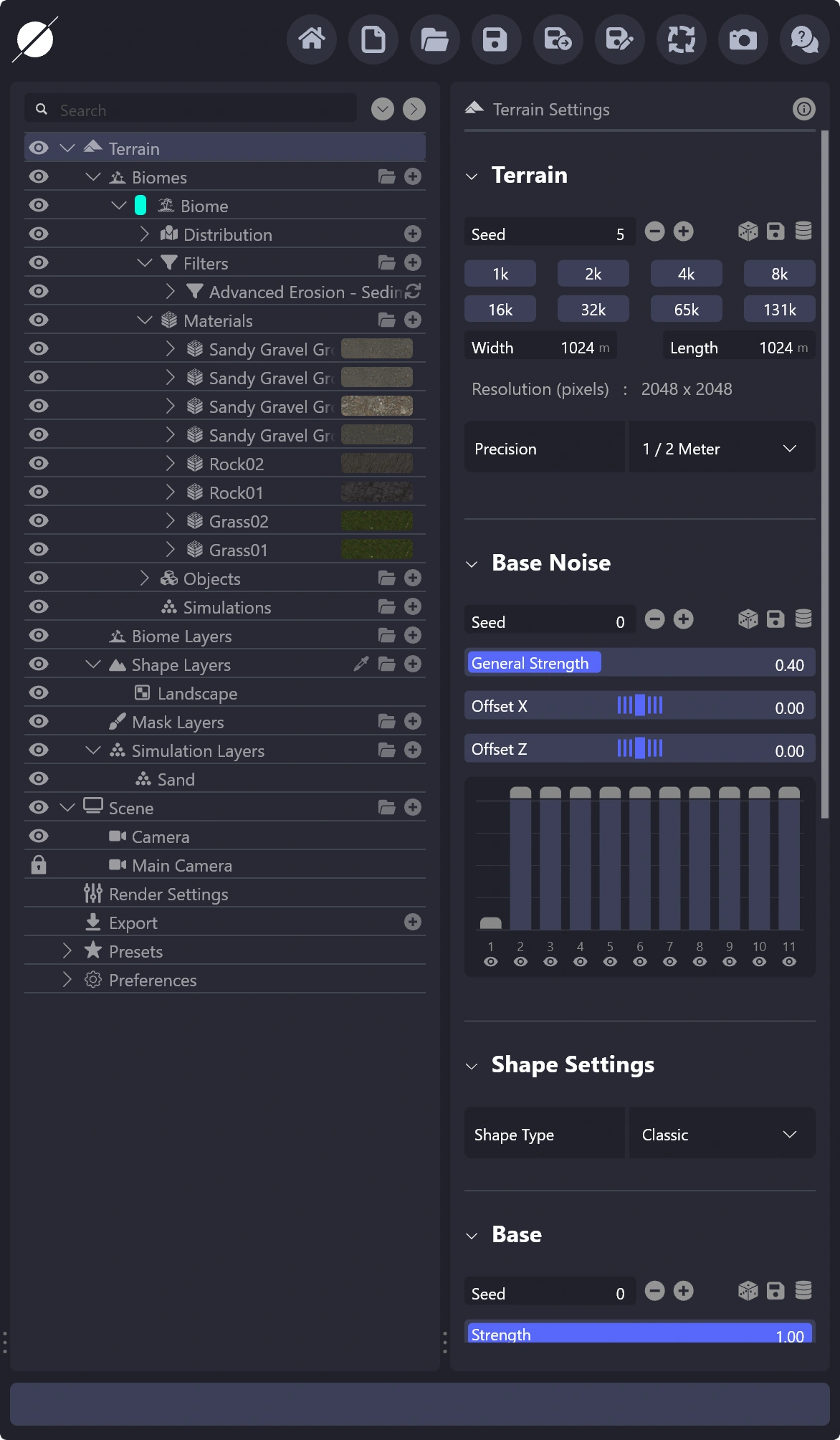
主面板包含设置和设计地形、渲染、导出、选项等所需的一切。所有操作都可以在此面板中完成，没有隐藏的弹出窗口或额外窗口。

<figure><img src="/files/018f7c8905f19cc2a6c74612d704443896281c6b" alt=""><figcaption></figcaption></figure>

主面板可以分为：

* 应用程序栏（最上方）
* 树视图（左侧）
* 属性视图（右侧）
* 状态栏（底部）

我们现在将详细说明每一部分。某些元素，例如树视图和属性视图，在其他文章中有更深入的章节。我们建议您按页阅读文档，这样可以更熟悉 World Creator。

## **应用程序栏**

应用程序栏包含通常在其他应用的“文件”菜单中可以找到的按钮。除此之外，它还显示特定于版本的信息，例如“EARLY ACCESS”（抢先体验），表示您正在使用可能不稳定、可能崩溃并存在运行时问题的测试版。我们通常在发布稳定官方版本之前发布此类版本。

<figure><img src="/files/1f32d22f2bf47e99d57112c92d7b4d8133404aff" alt=""><figcaption></figcaption></figure>

图标从左到右说明

<table><thead><tr><th width="179.699951171875">属性</th><th>说明</th></tr></thead><tbody><tr><td><strong>主菜单</strong></td><td>关闭此项目并返回主菜单。</td></tr><tr><td><strong>新建</strong></td><td>开始一个新的空白项目。</td></tr><tr><td><strong>加载</strong></td><td>从文件加载现有项目。</td></tr><tr><td><strong>保存</strong></td><td>保存当前项目。</td></tr><tr><td><strong>增量保存</strong></td><td>以增量命名方案（例如“New Project_001”）将当前项目另存为新文件。</td></tr><tr><td><strong>另存为</strong></td><td>通过创建新文件来保存当前项目。</td></tr><tr><td>同步</td><td>将项目导出为与 World Creator Bridge 工具兼容的格式。如果您想将地形传输到 Unity、Unreal Engine、Houdini、Cinema4D、Blender 等其他应用，这是最佳选项。</td></tr><tr><td><strong>截图</strong></td><td>当前视口将被捕获为截图并保存在以下的 screenshots 文件夹中： <em>[USER]</em>\Documents\World Creator</td></tr><tr><td><strong>关于我们</strong></td><td>打开一个弹出窗口，显示关于 World Creator 团队及更多信息。</td></tr></tbody></table>

## **树视图**

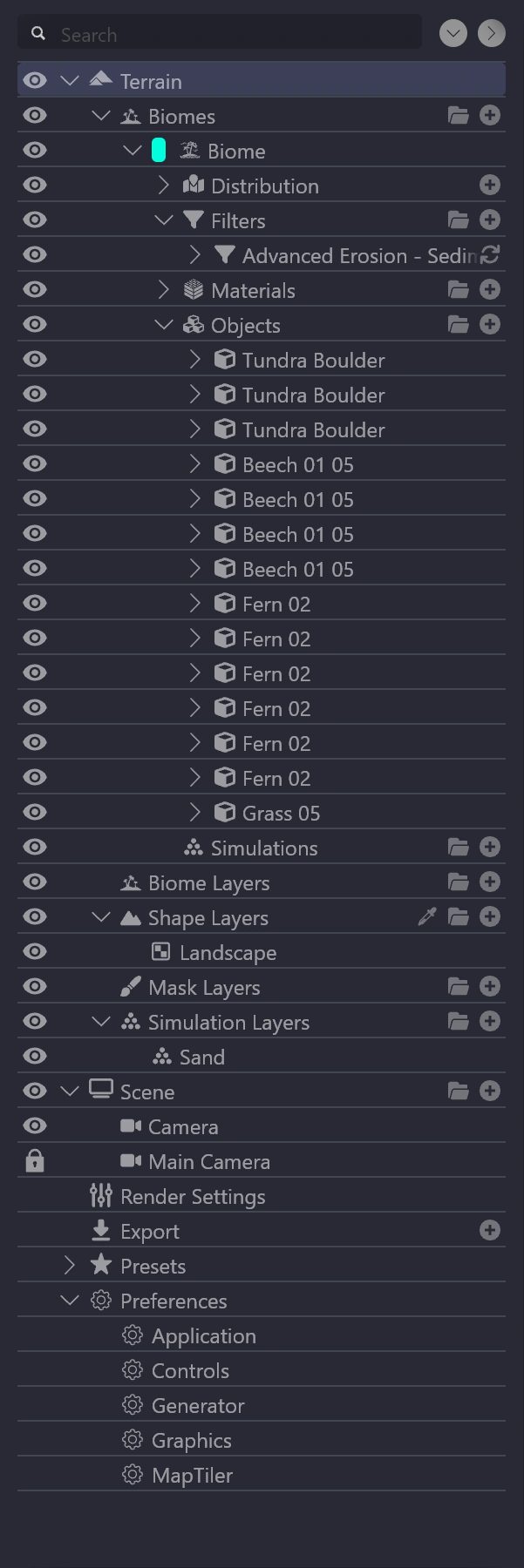
树视图显示应用内容的逻辑排列，尤其是地形。如下图所示，您会看到扩展到生物群系（Biomes）部分的地形（Terrain）部分，其中显示了可设计和创建的各种生物群系。生物群系由过滤器（用于改变地形形状）、材质（用于为地形添加颜色）和对象（用于在地形上放置 3D 模型，未来版本将添加）组成。

在树视图中工作时，您有以下选项：

<table data-header-hidden><thead><tr><th width="242"></th><th></th></tr></thead><tbody><tr><td><img src="/files/e63e67f6196fd9bf3f8781ced032c786d9bfae21" alt=""></td><td><ul><li><p><strong>移动</strong></p><p>拖放该项目</p></li><li><p><strong>删除</strong></p><p>要删除对象，可将其拖入视口并释放左键或按 DEL 键</p></li><li><strong>复制</strong><br>在拖动时按住 CTRL 键</li><li><p><strong>重命名</strong></p><p>双击其名称</p></li><li><p><strong>添加新元素</strong></p><p>单击名称旁的加号图标</p></li><li><p><strong>分组元素</strong></p><p>单击文件夹图标并将元素放置在其下方</p></li><li><p><strong>更改滤镜/材质类型</strong></p><p>单击树视图中元素名称右端的圆形箭头</p></li><li><p><strong>展开/折叠所有元素</strong></p><p>位于顶部搜索字段右侧的两个按钮</p></li></ul></td></tr></tbody></table>

## **属性视图**

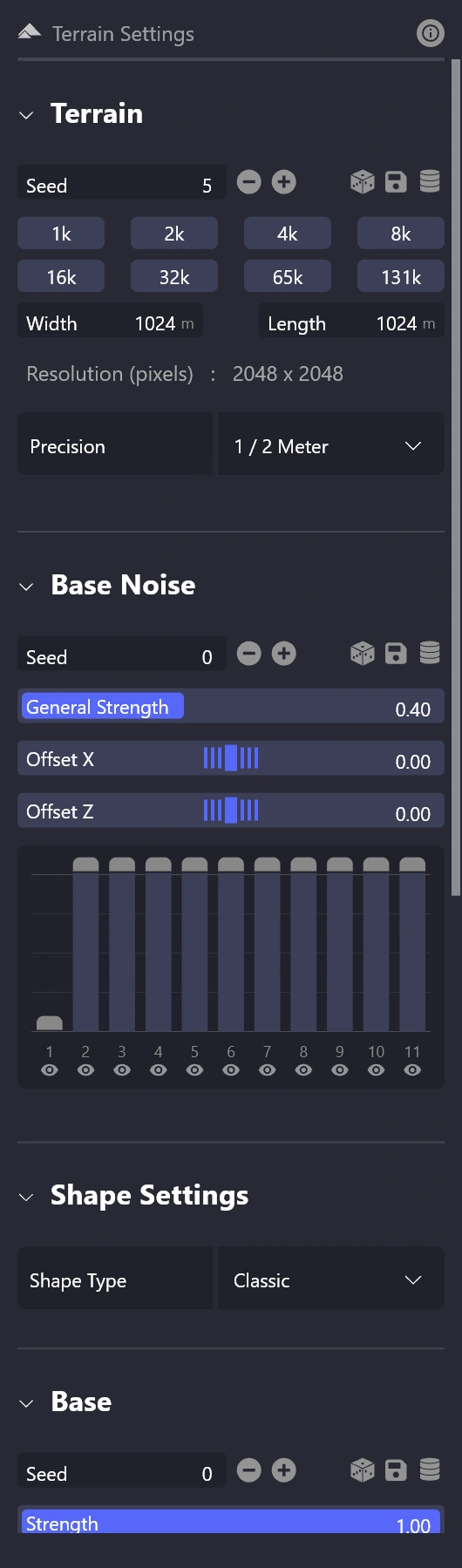
属性视图显示从树视图中选择项目的属性和设置。属性视图中显示的设置会根据在树视图中所选项目而变化。下面的设置演示了默认的生物群系元素。

您最常遇到的内容：

| <img src="/files/7c25e9606d39113dc9d9a33879dc0885f913d363" alt="" data-size="original"> | <p></p><ul><li><p><strong>种子</strong></p><p>由于 World Creator 基于程序化过程，几乎所有具有此特性的元素都会公开其种子。如果对结果不满意，尝试更改种子以获得不同的变化。</p></li></ul><p></p><ul><li><p><strong>等级强度</strong></p><p>在偏移滑块下方的（在此示例中）12 条栏。这会影响过滤器在地形每个等级上的作用强度。整个等级步进系统在 <a href="https://documentation.world-creator.com/en/walkthrough_levelstepsystem.phtml">这篇文章</a>.</p></li></ul><p></p><ul><li><p><strong>起始等级或等级步进</strong></p><p>您可以在 World Creator 的形状图层和基础形状中找到此选项。此项设置元素在等级步进系统中的级别，以及它将在何处与地形混合。请参阅 <a href="/pages/6243712133e41b7fbc9103a30e0fa15da9da8738">等级步进文章</a> 以获取有关如何使用它的更全面指南。</p></li></ul> |
| --------------------------------------------------------------------------------------- | ----------------------------------------------------------------------------------------------------------------------------------------------------------------------------------------------------------------------------------------------------------------------------------------------------------------------------------------------------------------------------------------------------------------------------------------------------------------------------------------------------------------------------------------------------------------------------- |

## **状态栏**

状态栏显示内部生成器的进度。修改地形或与之相关的任何需要重新生成的操作都会触发内部生成器处理更改。此处显示该进程的当前状态。World Creator 是基于 GPU 的实时生成器，确保超快速处理，因此可实现实时性能而不会造成不便。

<figure><img src="/files/5183943ea7855283d87286cc0cca035f933df6e7" alt=""><figcaption></figcaption></figure>


---

# Agent Instructions
This documentation is published with GitBook. GitBook is the documentation platform designed so that both humans and AI agents can read, navigate, and reason over technical content effectively. Learn more at gitbook.com.

## Querying This Documentation
If you need additional information that is not directly available in this page, you can query the documentation dynamically by asking a question.

Perform an HTTP GET request on the current page URL with the `ask` query parameter, and the optional `goal` query parameter:

```
GET https://docs.world-creator.com/zh/cao-zuo-zhi-nan/introduction/main-panel.md?ask=<question>&goal=<endgoal>
```

`ask` is the immediate question: it should be specific, self-contained, and written in natural language.
`goal` is optional and describes the broader end goal you are ultimately trying to accomplish on behalf of the user. GitBook uses it to tailor the answer towards what is most useful for that goal.

The response will contain a direct answer to the question and relevant excerpts and sources from the documentation.

Use this mechanism when the answer is not explicitly present in the current page, you need clarification or additional context, or you want to retrieve related documentation sections.